SAP Transports using ChAI

Transport requests are packages that are used to transfer code and configuration changes from one SAP system to another. Managing transport requests involves developers initiating the transport request, performing adjustments in the queue, and running export tasks. Then the SAP Basis team (or Transport administrator) schedules it in the queue for later import once approved. Overall, it takes too much time and effort, especially when fully executed manually.

SAP Transport Automation simplifies the process of moving transport requests in SAP from the source system to the target system. The IT-Conductor ChAI (Change Automation Intelligence) solution manages ticketing, tracking, and transport execution. After approvals, ChAI automates the movement of changes across SAP environments, reducing manual involvement by approximately 50%. This approach decreases errors and speeds up deployment.

Prerequisites

System
Name
Description
Version
Transport Number

SAP Transport Automation

IT-Conductor Function Modules

IT-Conductor Custom Function Modules Transport

6.87

ZO2K900154

Name
Description
Version

SAP NW STMS Management Role

SAP NW Transport System Management Role Import File

6.86

Note: If Single Sign-On (SSO) is required for users (SAP developers/requesters, Managers/Approvers, and Basis administrators, etc.), please consult with the IT-Conductor Project Team for specific Active Directory (AD) integration onboarding tasks.

Note: If you have a specific process for transport requirements into the QA/Consolidation system, as well as the Production/Delivery system, please provide and discuss a custom workflow/logic for the IT-Conductor project team to configure.

  • Make sure that an SAP user with the STMS role has been created and assigned to the IT-Conductor robot account (See Create Robot User for more details). Please reach out to IT-Conductor Support for this step to complete the configuration and testing of the initial workflow.

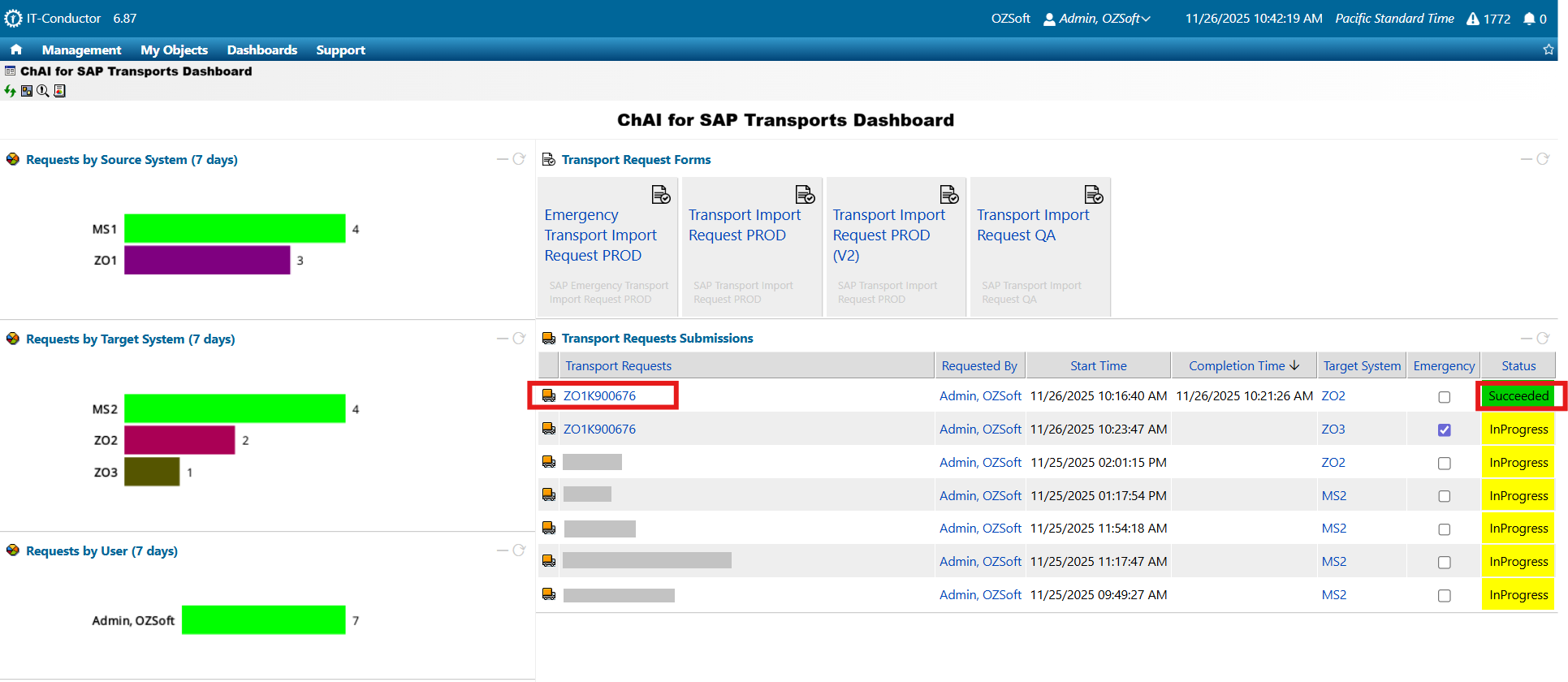
ChAI for SAP Dashboard

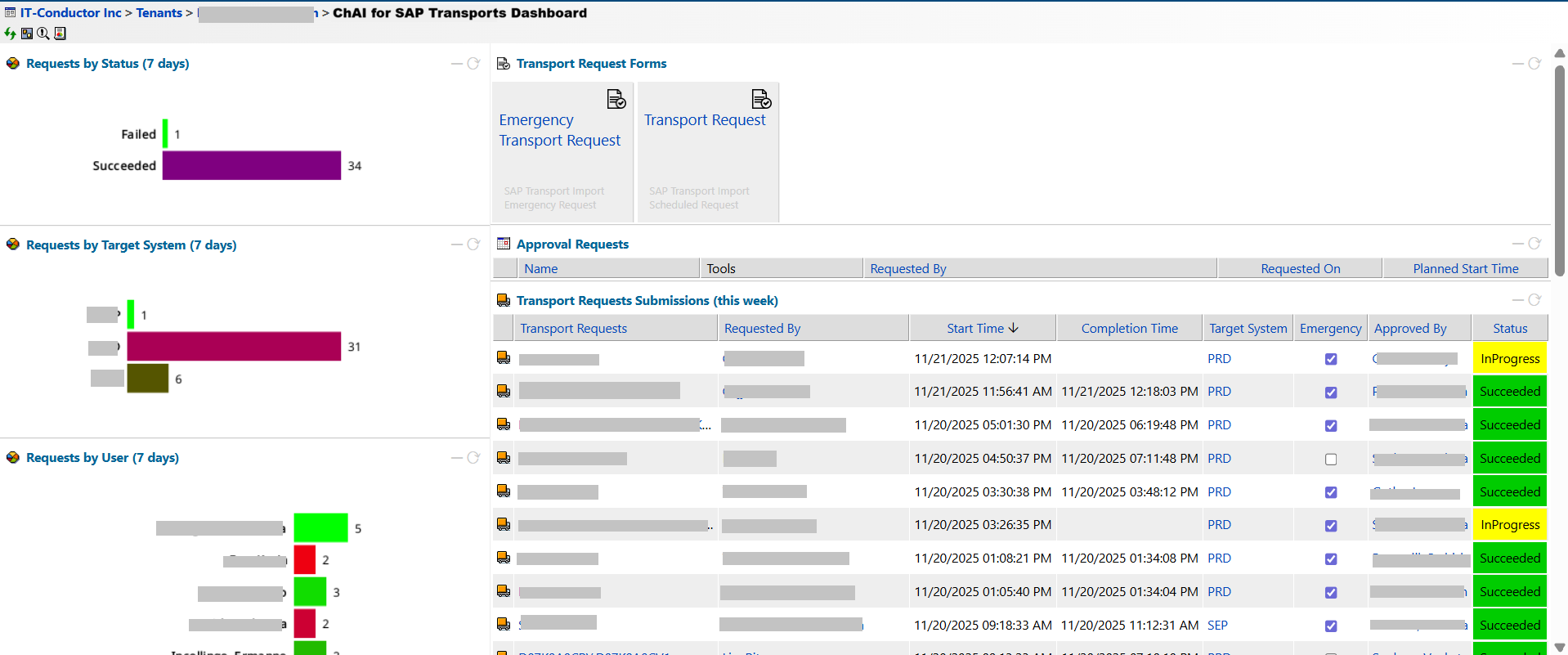
The ChAI for SAP Dashboard is a centralised platform where users can initiate, track, monitor, and approve all submitted customisation and workbench transport requests in real time. This dashboard enables SAP Basis teams to effortlessly monitor request statuses, ensuring smoother approvals and streamlined transport management.

  • Requests by Status: Displays a chart showing the number of transport requests that have succeeded or failed.

  • Requests by Target System: Displays a chart showing the number of transport requests grouped by target system.

  • Requests by Source System: Displays a chart showing the number of transport requests grouped by source system.

  • Requests by User: Displays a chart showing the number of transport requests submitted by each user.

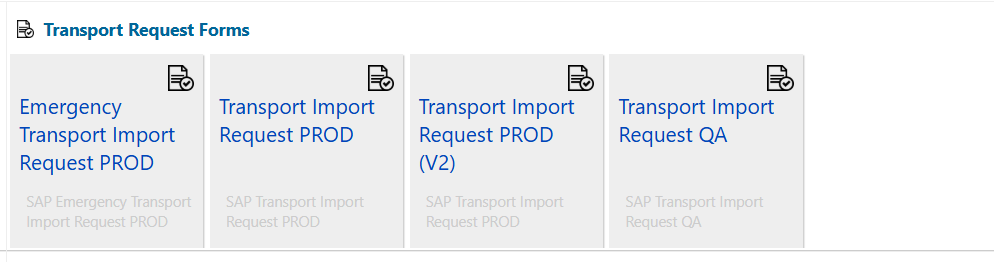
  • Transport Request Forms: Displays the available wizards used to initiate new transport requests. You can start the following types of transport from here:

    • Emergency Transports

    • Transports to a Production System

    • Transports from a DEV System to a QA System

  • Approval Requests: Lists transport requests that require approval. (Only visible to users with the approver role).

  • Transport Request Submissions: Lists all transport requests that have been submitted.

Note: The dashboard displays data from the last 7 days.

Figure 1: ChAI for SAP Tranports Dashboard in IT-Conductor
How to Initiate a Transport Request

To start a transport request using the ChAI for SAP Dashboard, follow the instructions below.

  1. Visit service.itconductor.com and enter your login credentials.

  2. On the main menu, navigate to Dashboards → ChAI for SAP Transports → Transport Request Forms and select one of the options.

Figure 2: Transport Request Forms
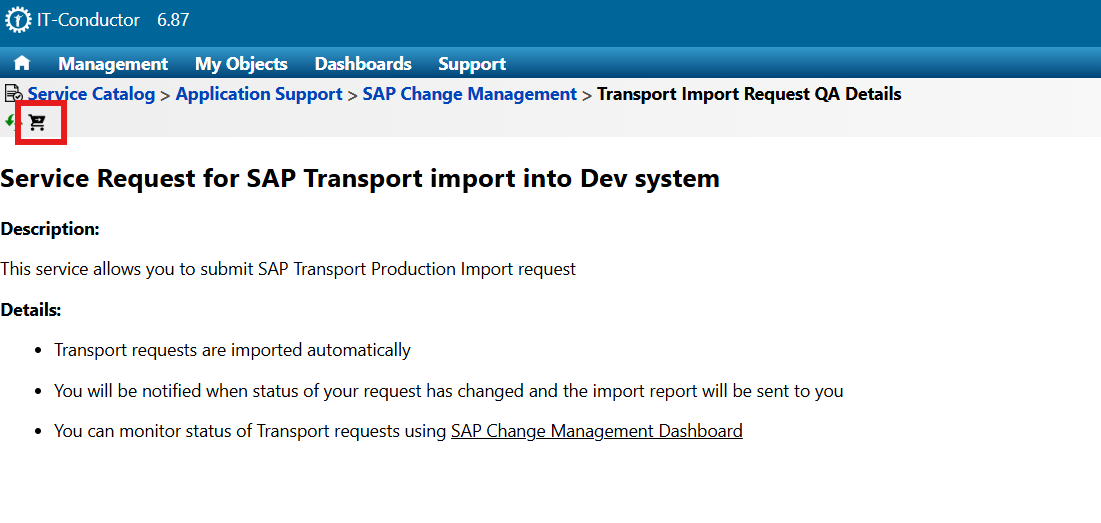
  1. Click on the Checkout Service Request icon.

Figure 3a: Initiate a Transport Request
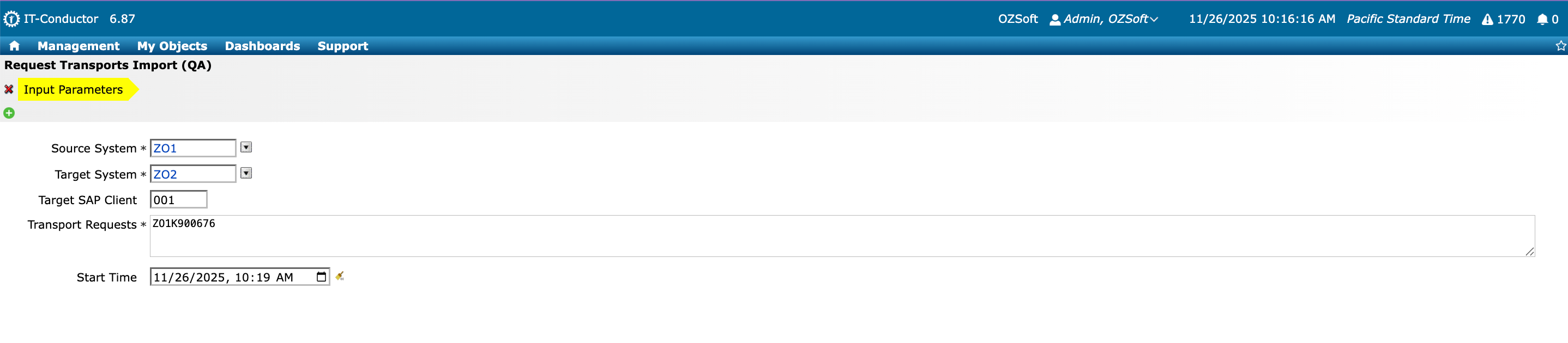
  1. On the Request Transports Import wizard, enter the following parameters

    1. Source System - refers to the SAP system where changes are developed and packaged into a transport request.

    2. Target System - refers to the SAP system where the transport request is imported after approval.

    3. Target SAP Client - refers to a specific client within the target system where the transported changes will be applied.

    4. Transport Requests - refers to packages that contain SAP system changes, such as configurations or custom developments, for deployment.

    5. Start Time - refers to a scheduled time when a transport request begins the import process into the target system. Click on the calendar icon to select a time and date.

Figure 3b: Initiate a Transport Request

  1. Click on the icon to execute the transport request.

  2. Check the Activity Log.

Figure 4: Transport Request Log
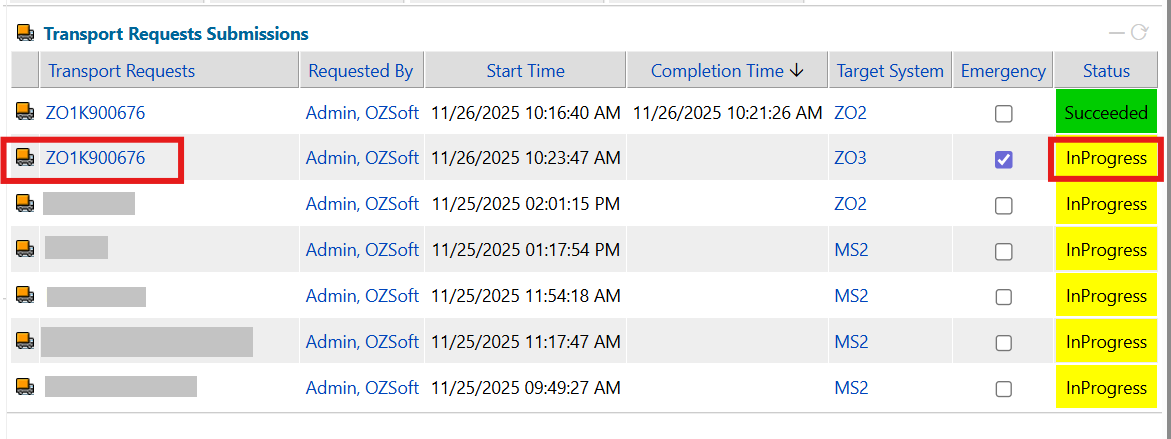
  1. Return to the dashboard and find the newly created request listed in the Transport Request Submissions tile.

Figure 5: Transport Request Submissions

Copy a transport request

  1. To copy a transport request from an existing one, go to the ChAI for SAP Transports Dashboard → Transport Request Submissions, and click on the icon → Copy.

Figure 6a: Copy an existing transport request
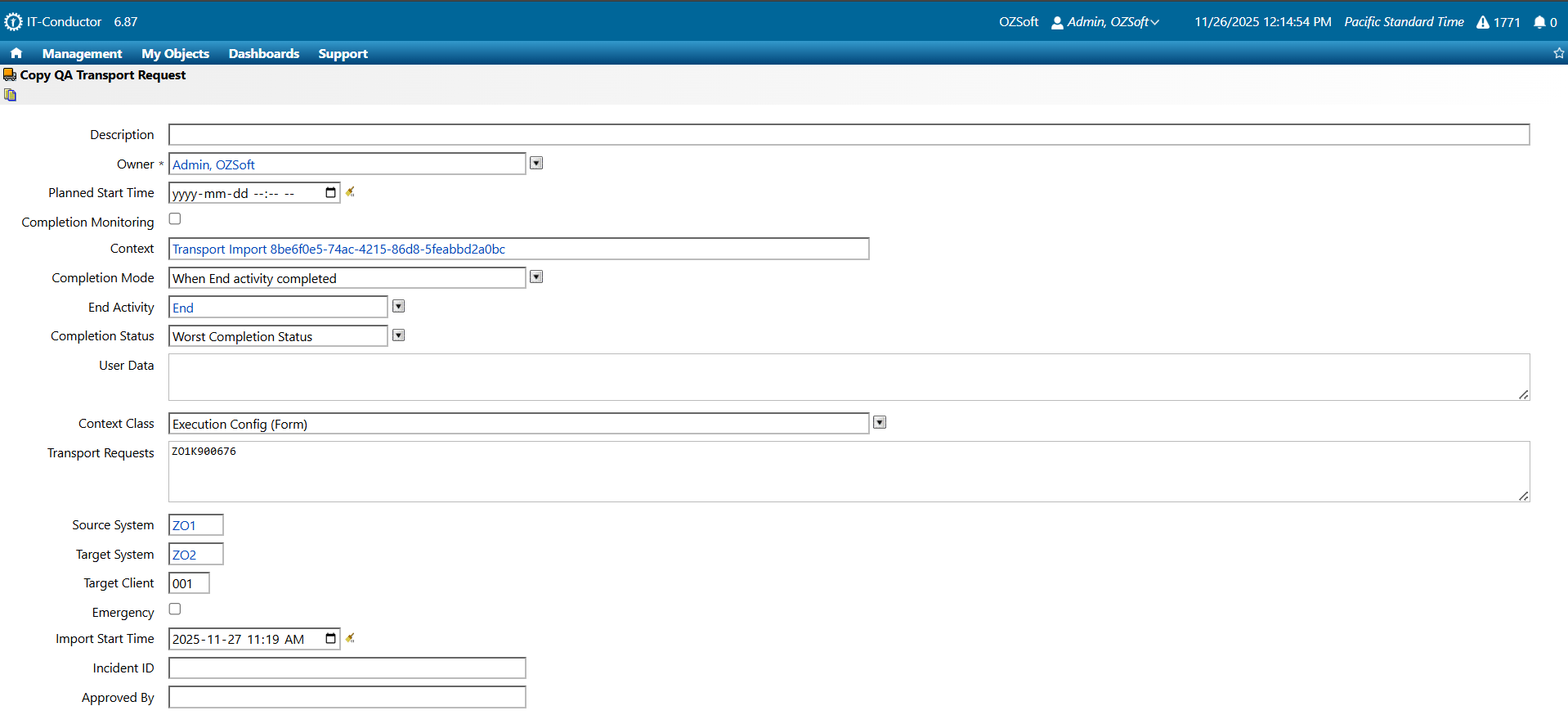
  1. Fill in the following details:

    1. Description: a summary of the transport request.

    2. Planned Start Time: refers to the time and date when the transport process should begin. Click the calendar icon to select a time and date.

    3. Import Start Time: refers to the time and date when the transport will be imported into the target system. Click the calendar icon to select a time and date.

    4. Incident ID (optional): Enter the IT-Conductor ticket number for reference, if applicable.

Figure 6b: Copy an existing transport request
  1. Click the icon to save.

Note: The processes for emergency and production transports are very similar to each other, with the only difference being that production transports trigger an approval workflow.

Approving Transport Requests

Approval workflows are triggered after creating a Transport Import Request in a Production system, ensuring changes are reviewed and authorised before deployment. If you’re a designated approver, follow the instructions below to approve a transport request.

  1. After the workflow has started processing, an email notification will be sent to the respective approver. Click the link in the email to go to the workflow.

Figure 7: Approval Request Email Notification

  1. As an approver, you can also go to the ChAI for SAP Transports Dashboard, open the Approval Requests tile, and select any pending transport.

Figure 8: Approval Requests in the ChAI for SAP Transports Dashboard
  1. Review the transport request details.

Figure 9a: Approving a Transport Request

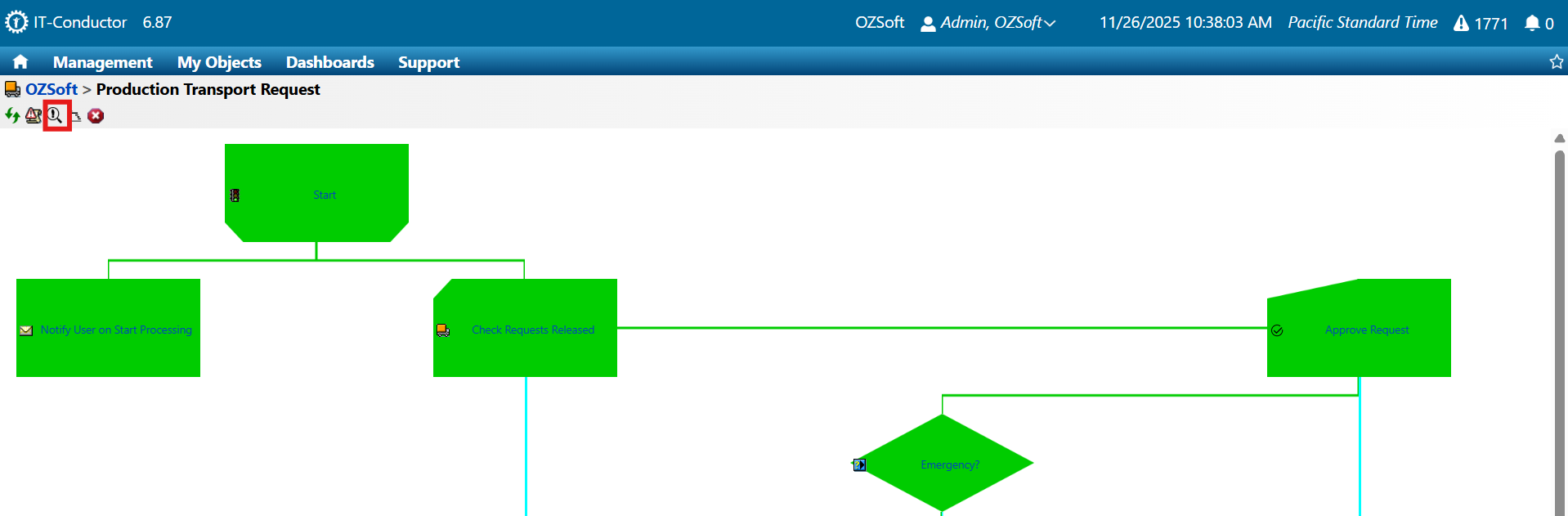
  1. Click the Instances icon, and then select Approve to approve the workflow.

Figure 9b: Approving a Transport Request
  1. Once the transport is approved, go back to the workflow and monitor the status of each process definition by clicking on the Refresh button, or the logs if necessary.

Figure 10: Transport Request Workflow
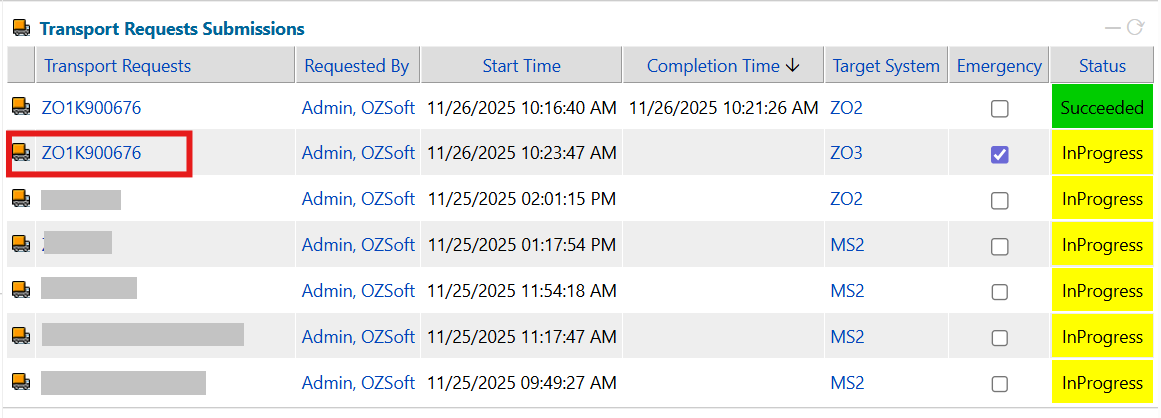
  1. When all the boxes have turned green, it means the transport was successful. You may check the transport status by going back to the ChAI for SAP Tranports Dashboard, or by checking your SAP system. You will also get an email notification with any status changes or incoming errors during the transport process.

Figure 11: Transport Request Submissions in the ChAI for SAP Transports Dashboard
Monitoring Transport Requests Status

Once the transport is submitted, a process definition is created, and appropriate notifications will go out to the requester and approvers. Upon approval, the transport will follow the logic for either a normal scheduled import date/time or an emergency import path. To monitor the status of an ongoing transport request, follow the instructions below.

  1. Navigate to the ChAI for SAP Transports Dashboard.

  2. Click on the recently created transport request to see its workflow.

Figure 12: Transport Request Submissions
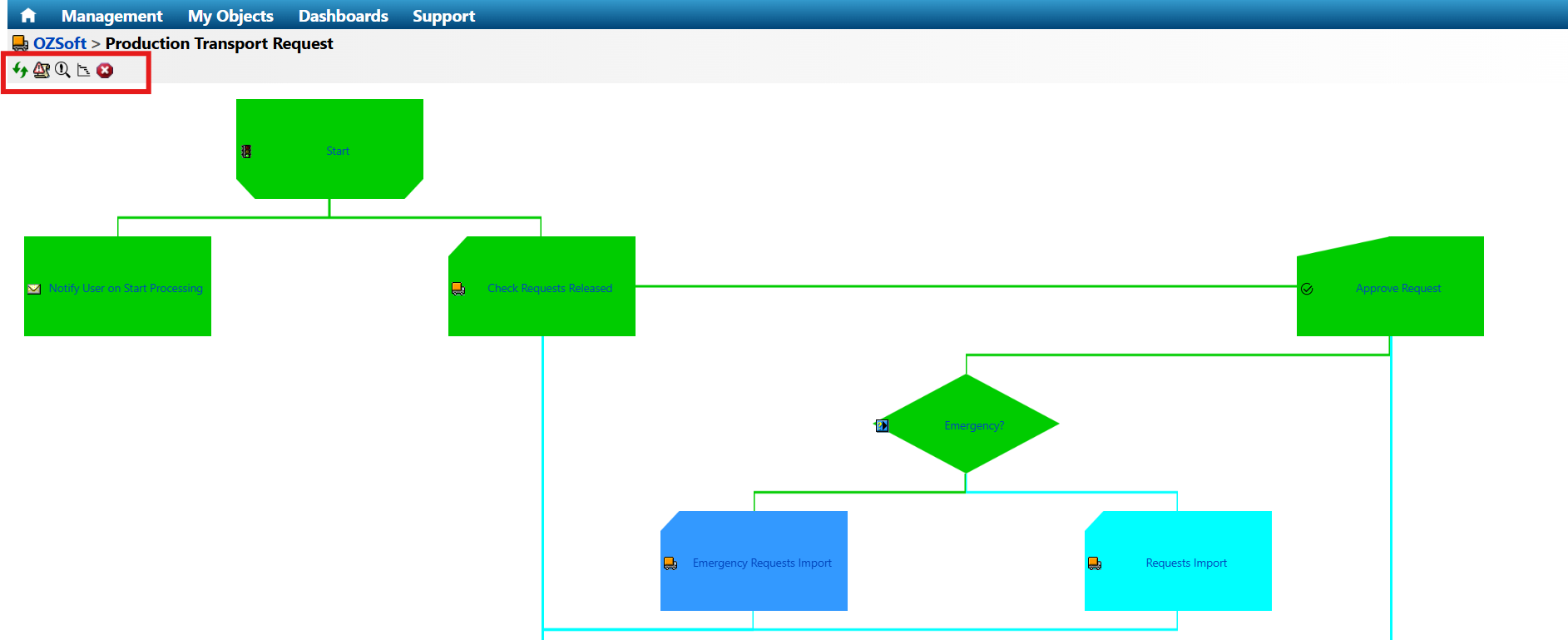
Note: IT-Conductor provides real-time insights into the status of each Transport Request, including whether it has been successfully processed or if any errors or warnings need attention. There are 4 main statuses in the IT-Conductor workflows: Red/Failed, Yellow/In Progress, Green/Succeeded, and Light blue/Initial (or not yet started).

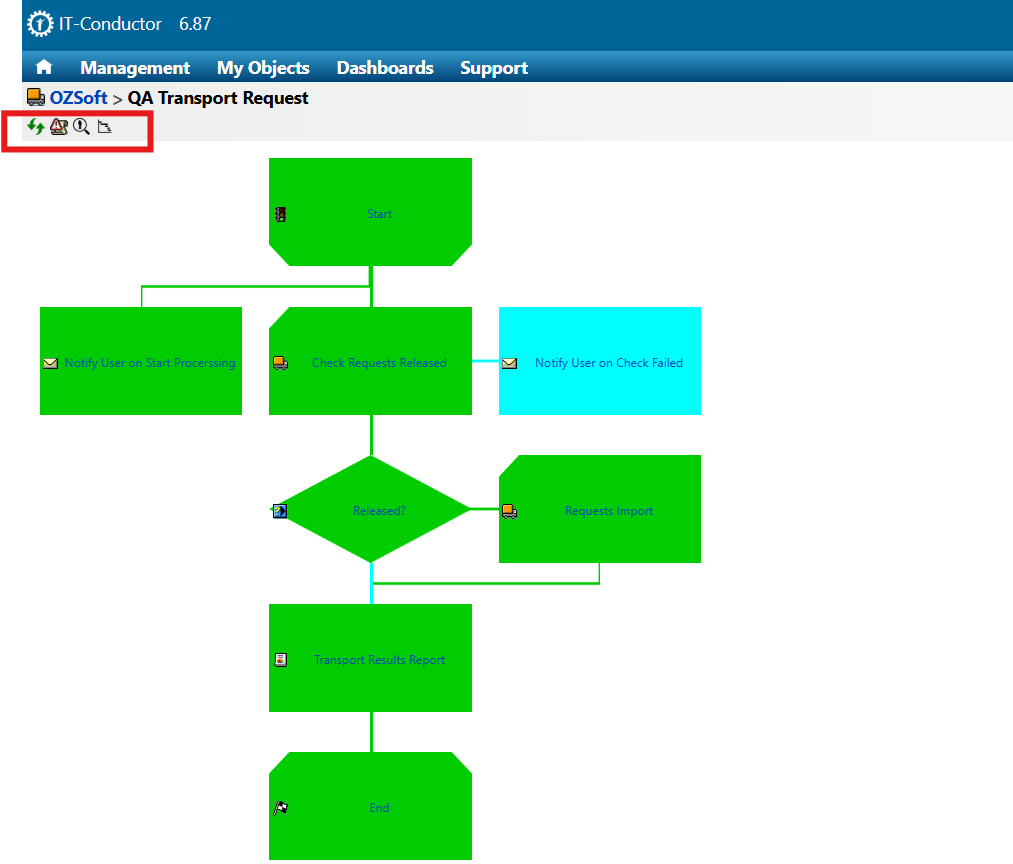
  1. Inside the workflow, you can perform the following actions:

Figure 13: Options in the Transport Request Workflow

a. Refresh the workflow status.

b. Transport Request Log . You can also view the log for each process definition once the box turns green.

Note: Runtime processing information is kept for 30 days, and audit trail records are kept for 3 years.

Figure 14: Transport Request Log

c. Check Audit Trail .

Figure 15a: View Workflow Audit Trail

Figure 15b: View Workflow Audit Trail

d. View the Gantt Chart for the transport process.

Figure 16a: View Process Gantt Chart
Figure 16b: View Process Gantt Chart
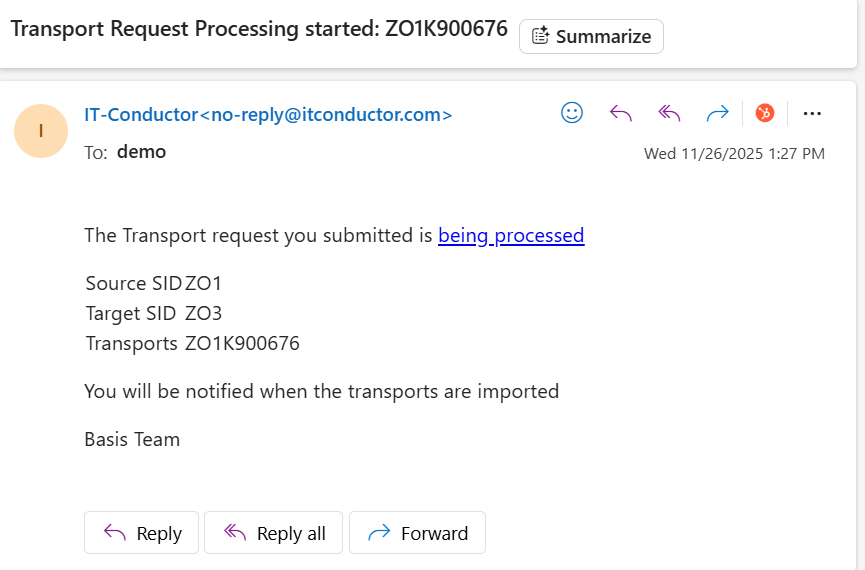
  1. You will receive an email notification indicating that a transport request has been initiated.

Figure 17: Transport Request Email Notification
  1. If one of the process definitions turns red, you can check its activity and execution logs and troubleshoot accordingly by clicking on the Transport icon → Log or Execution Log .

Figure 18: View Workflow Log/Execution Log
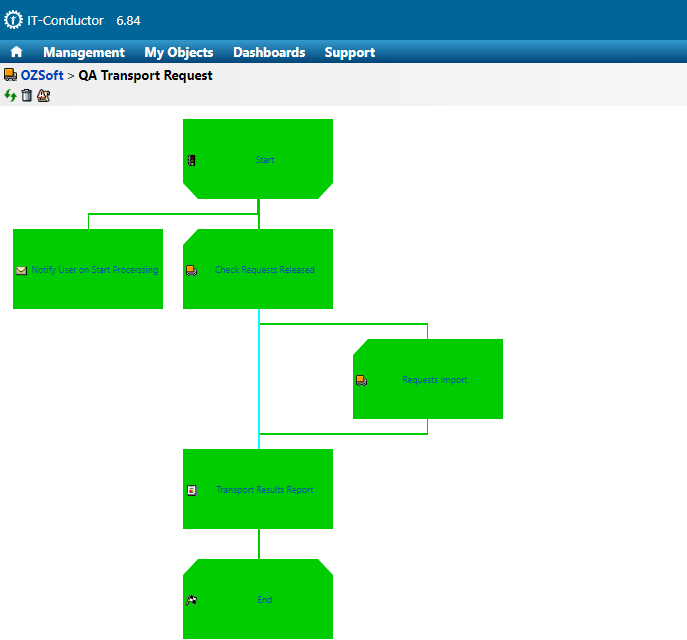
  1. Once the entire workflow has turned green, it means the transport was successfully imported. You will also get an email notification with the details. For further confirmation, you may check your SAP system.

Figure 19: Successful Transport Request Workflow
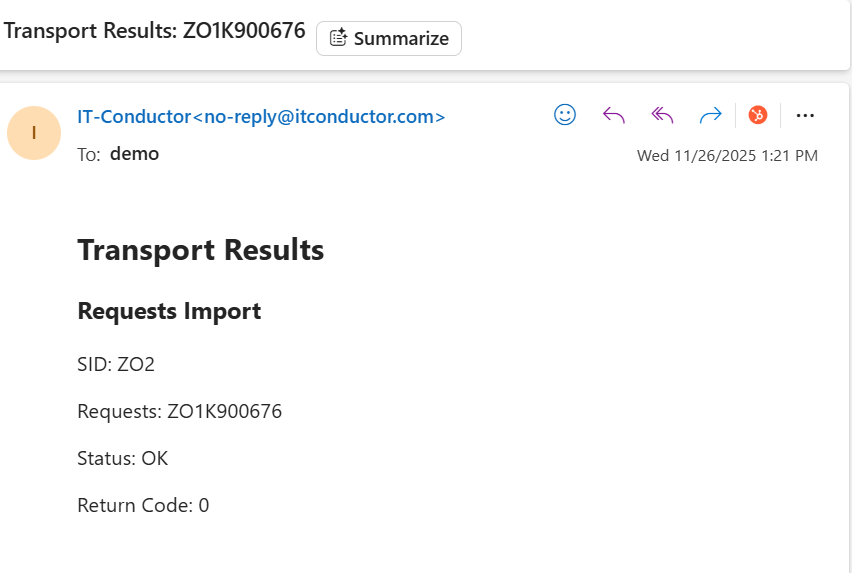
  1. You will also receive an email report when the transport workflow is complete.

Figure 20: Transport Request Email Notification

SAP Change Management Report

Request a ChAI for SAP Transports Dashboard report from the IT-Conductor Support Team and have it emailed to you on your preferred schedule and cadence.

The SAP Change Management Report includes:

  • Request by Status

  • Request by Target System

  • Requests by User

  • Requests by Approver

  • Transport Requests Submissions

Figure 21a: SAP Change Management Report
Figure 21b: SAP Change Management Report

For more information, check our FAQ section on SAP Transport Automation.

Demo Video

Video 1: IT-Conductor ChAI for SAP Transports Demo

Last updated