IT-Conductor Gateway Restart Guide

A gateway restart may be required during maintenance, troubleshooting, or after configuration changes. You can restart the IT-Conductor Gateway using one of the following methods.

Method 1: Restart from the Management UI

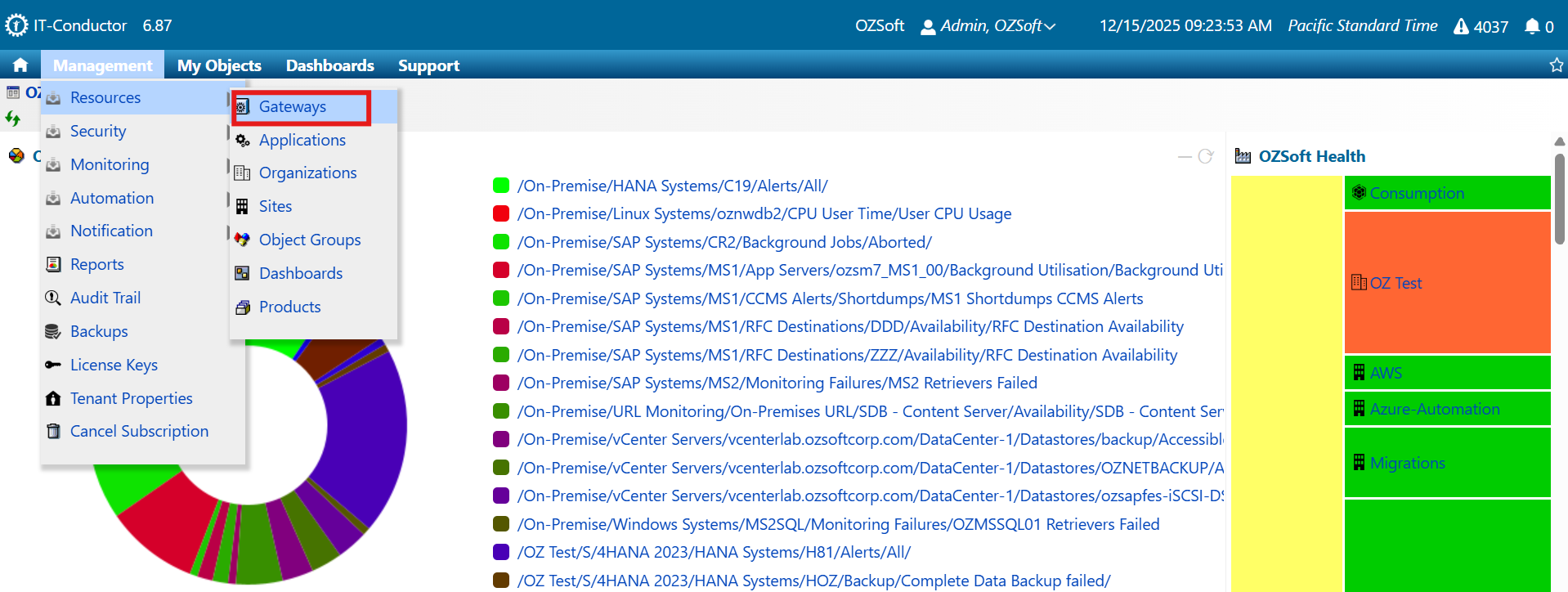
  1. On the main menu go to Management → Resources → Gateways.

Figure 1: Gateways Option in Main Menu
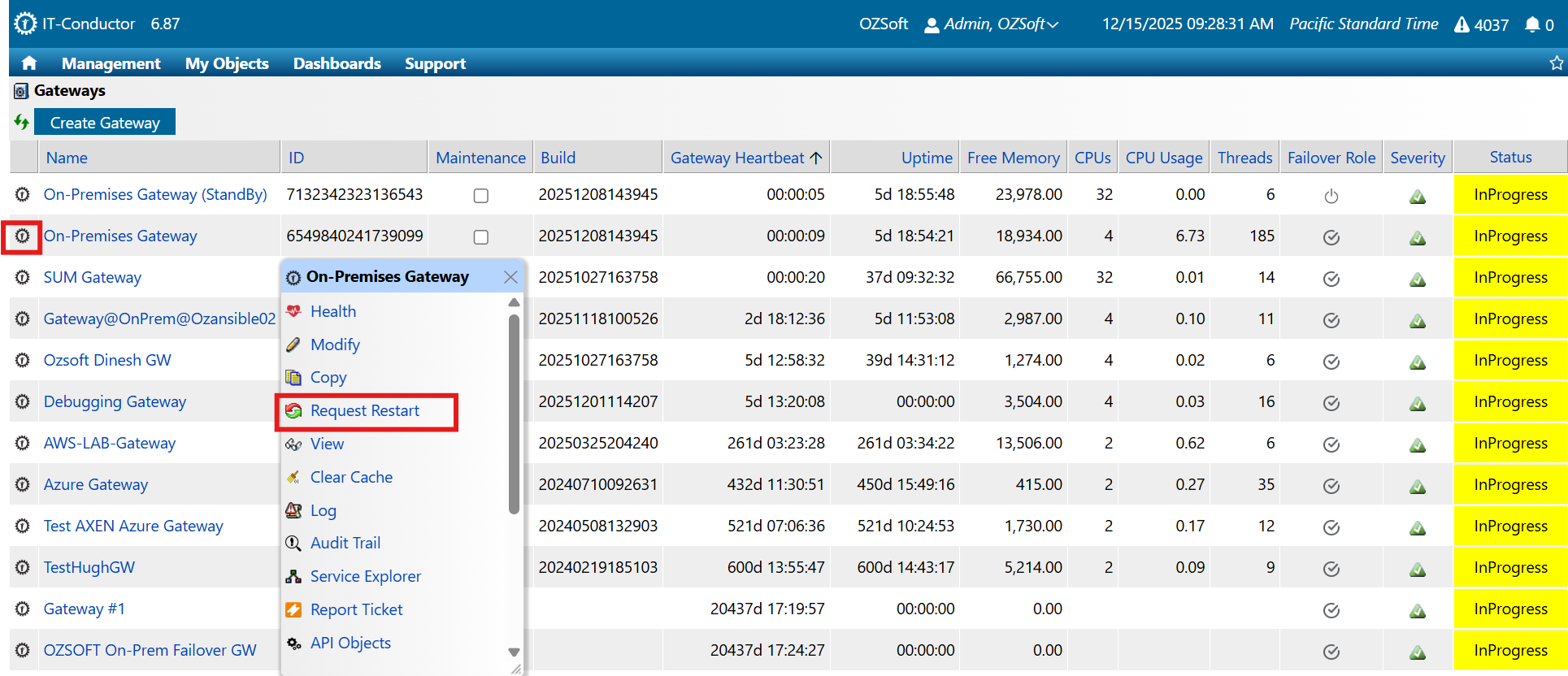
  1. Click the icon next to the gateway you wish to restart and click the Request Restart button.

Figure 2: Request Restart Option 1
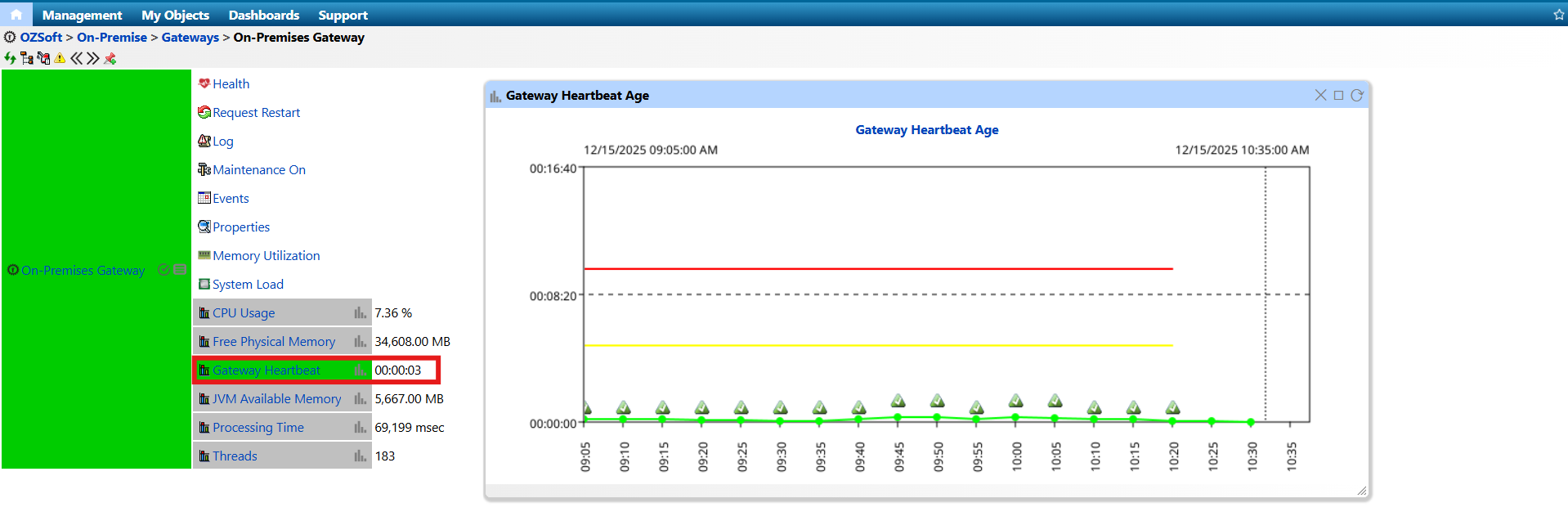
  1. The same button is also available by clicking on the gateway’s name → Request Restart

Figure 3: Request Restart Option 2
  1. Wait a few minutes for the restart to complete.

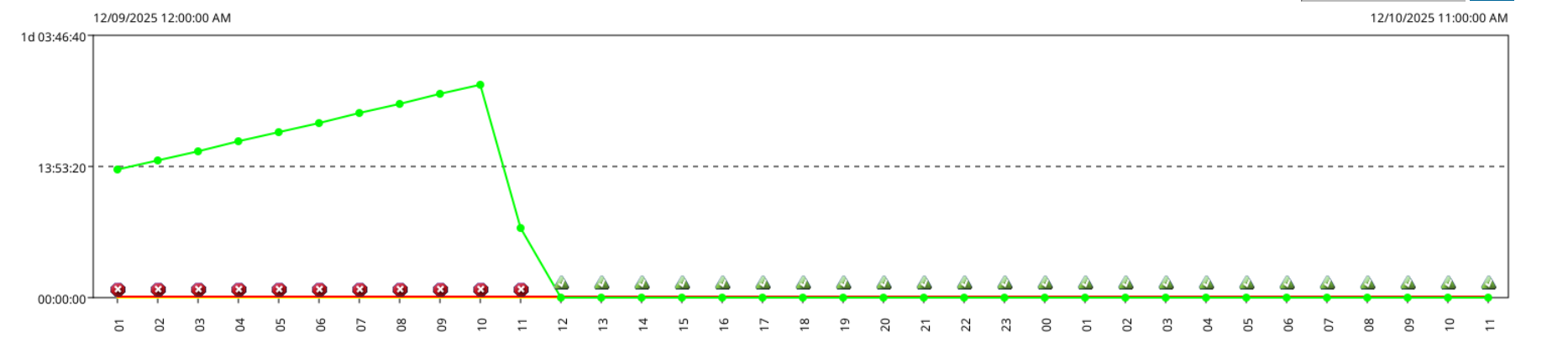
  2. Verify the gateway status by clicking on Gateway's NameGateway Heartbeat and enlarging the pop-up chart.

Figure 4a: Gateway Heartbeat
Figure 4b: Gateway Heartbeat Regulated
Method 2: Restart using commands (Linux Only)

  • Run the following commands on the gateway host:

  • Run the following command to display the gateway’s state after restarting.

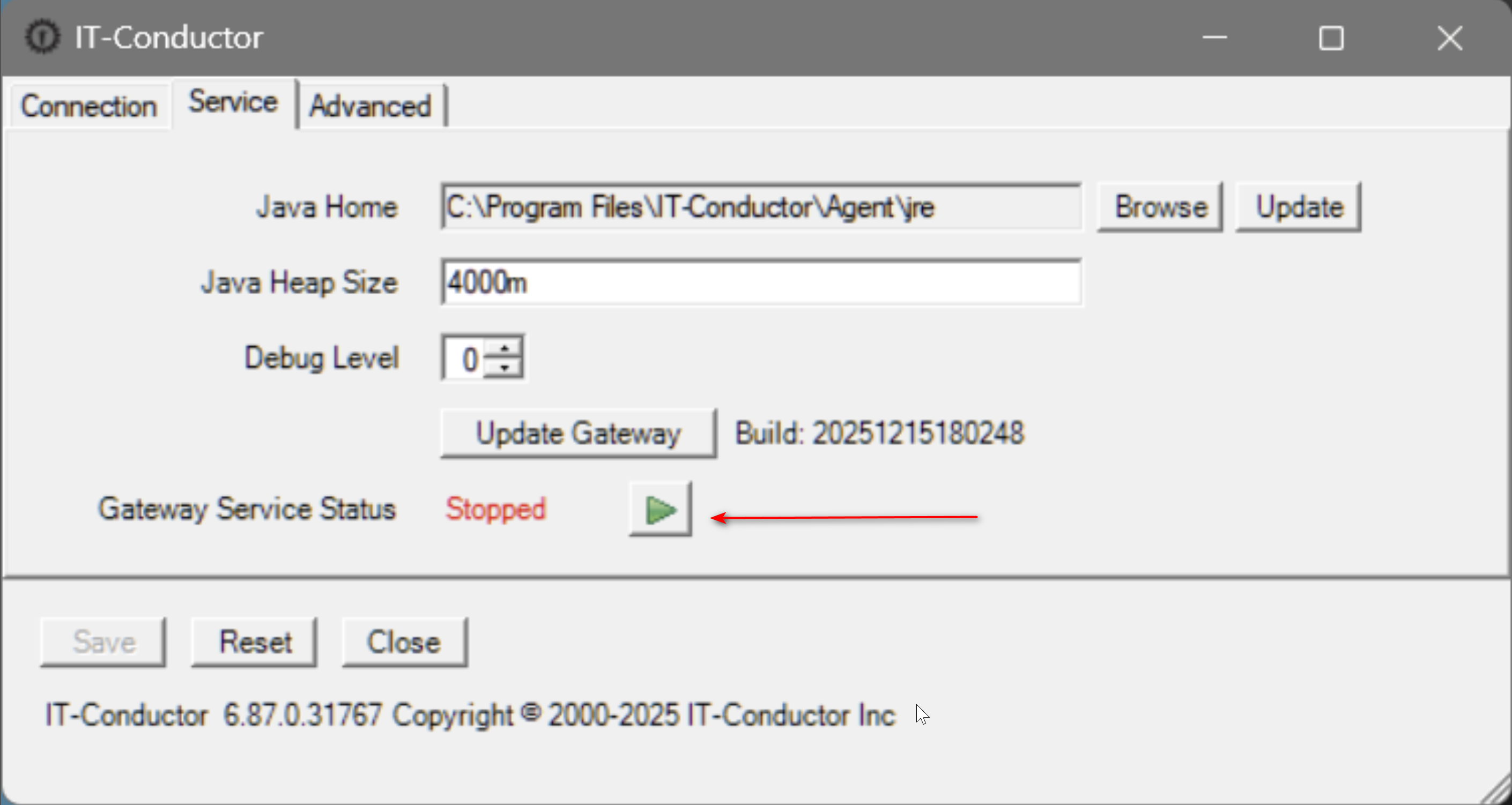
Method 3: From the Configuration Utility (Windows Only)

  1. Navigate to the directory where the JRE Gateway is installed.

  2. Open the Configuration Utility.

  3. Click the Stop icon to stop the gateway.

  4. Once the gateway has stopped, click the Start icon to restart it.

Figure 5: Gateway Stop Start Option in the Configuration Utility (Windows)

Last updated