# SAP BTP Monitoring

SAP Business Technology Platform (SAP BTP) is a unified cloud platform that provides services for application development, integration, data management, and analytics. It is commonly used to connect SAP and non-SAP systems, orchestrate integrations, and support extension scenarios across enterprise landscapes.

Monitoring SAP BTP with IT-Conductor enables centralized visibility into integration services, connection health, and runtime activity. This ensures early detection of issues, improved system reliability, and proactive management of critical business integrations.

### Prerequisites <a href="#prerequisites" id="prerequisites"></a>

Before configuring SAP BTP monitoring in IT-Conductor, complete the following steps within your SAP BTP environment.

#### Assign Required Entitlements <a href="#assign-required-entitlements" id="assign-required-entitlements"></a>

1. Navigate to your subaccount in SAP BTP.
2. On the left side menu, navigate to **Entitlements**.
3. Verify that the **Process Integration Runtime** service (API plan) is assigned.

<figure><img src="/files/ruLitzHFXu3Qatp29PO5" alt=""><figcaption><p>Figure 1: BTP Subaccount - Entitlements</p></figcaption></figure>

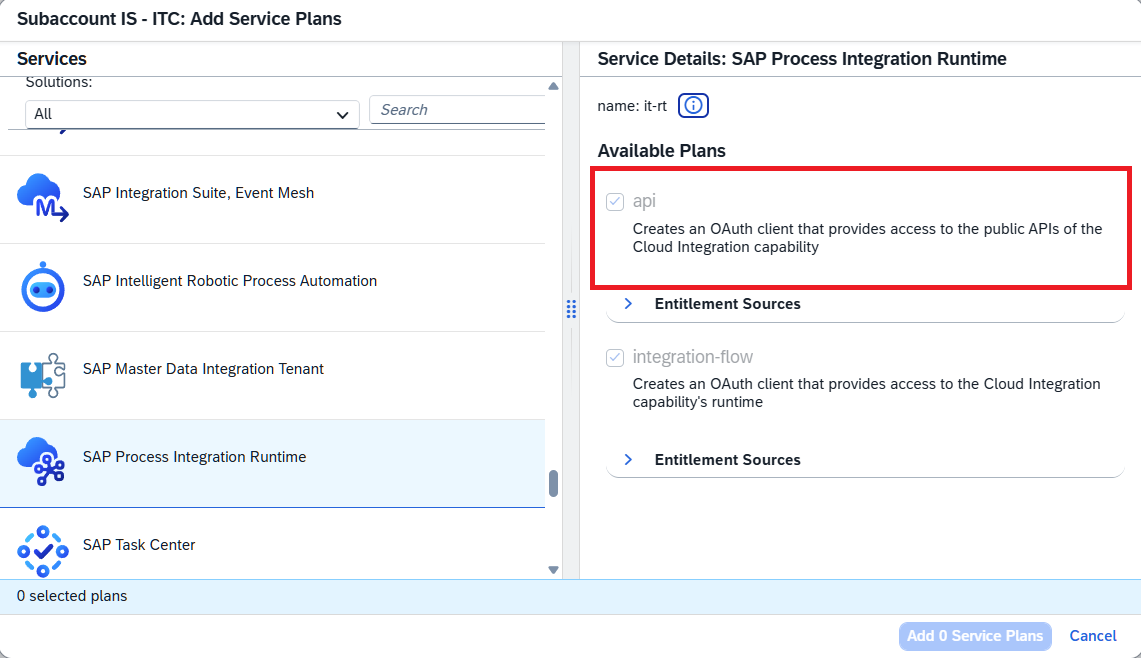
4. If it’s not assigned, click **Edit** in the upper right corner and add the required service plan

<figure><img src="/files/ED4oStlpWmaHto8NsUqH" alt=""><figcaption><p>Figure 2: BTP Subaccount - Add service plans</p></figcaption></figure>

#### Set Up Cloud Foundry Environment <a href="#id-2.-set-up-cloud-foundry-environment" id="id-2.-set-up-cloud-foundry-environment"></a>

1. In the left side menu, navigate to **Services ->** **Instances and Subscriptions** **→ Environments**
2. Make sure that a **Cloud Foundry** environment is created in the subaccount.

<figure><img src="/files/wU5jhsSh6tX9oOXf9VWm" alt=""><figcaption><p>Figure 3: BTP Subaccount - Instances and subscriptions</p></figcaption></figure>

3. If it’s not available, click on **Create** in the upper-right corner and configure the environment as required

<figure><img src="/files/7GHgQL1210MKjdjkbXxF" alt=""><figcaption><p>Figure 4: BTP Subaccount - Create new instance</p></figcaption></figure>

4. Navigate to the **Cloud Foundry** menu on the left side and select **Space** to create a space within the Cloud Foundry environment. This space will be used when provisioning the service instance.

<figure><img src="/files/wn4Fh3NaC7TOalfhLIHo" alt=""><figcaption><p>Figure 5: BTP Subaccount - Cloud Foundry space</p></figcaption></figure>

&#x20;

#### Create Process Integration Runtime Instance <a href="#create-process-integration-runtime-instance" id="create-process-integration-runtime-instance"></a>

1. Navigate to **Service Marketplace** on the left side menu

<figure><img src="/files/lb0sqCOEj2wmh0SiGV2E" alt=""><figcaption><p>Figure 6: BTP Subaccount - Service marketplace</p></figcaption></figure>

2. Select **SAP Process Integration Runtime**.

<figure><img src="/files/MrC81uQmN7fWgyhtf377" alt=""><figcaption><p>Figure 7: BTP Subaccount - SAP Process integration runtime service</p></figcaption></figure>

3. Click on the **Create** button

<figure><img src="/files/zEvcyf1QRrwdOoog7fTb" alt=""><figcaption><p>Figure 8: BTP Subaccount - Create new instance</p></figcaption></figure>

4. Configure the instance with:
   1. **Plan** - API plan (ensures no additional charges)
   2. **Environment** - Cloud Foundry
   3. **Space** - select previously created space

<figure><img src="/files/k8MohGTAInYkxUCzrels" alt=""><figcaption><p>Figure 9: BTP Subaccount - Newly created instance</p></figcaption></figure>

#### Generate Service Key <a href="#generate-service-key" id="generate-service-key"></a>

1. Open the newly created service instance
2. Navigate to **Service Keys**
3. Click **Create**

<figure><img src="/files/cewnsaHrUrKpMrk7QANV" alt=""><figcaption><p>Figure 10: BTP Subaccount - Service keys</p></figcaption></figure>

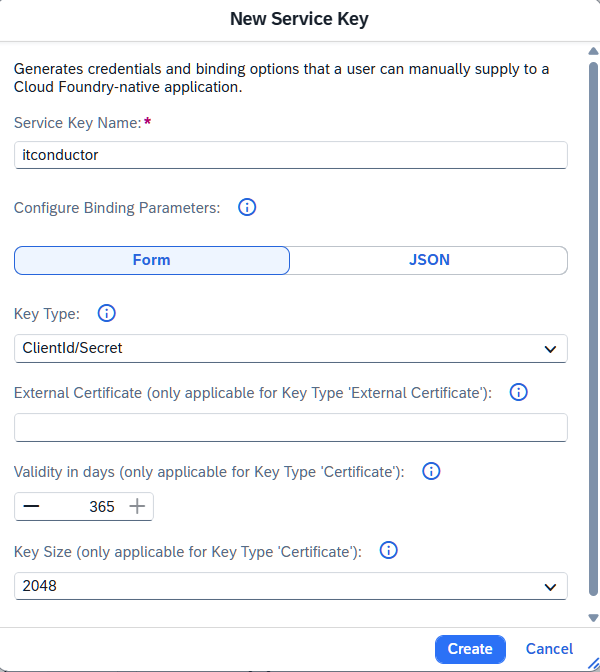
4. Give the service key a name
5. Under key type, select Clientid/Secret

<figure><img src="/files/K6dYyzOo9dvuTEKGEHAf" alt=""><figcaption><p>Figure 11: BTP Subaccount - Create new service</p></figcaption></figure>

6. The new service key will be added to the list. From the right side menu, you can either view, download, or delete the new key.

<figure><img src="/files/GcgbMDpaMjWAvzLxTugG" alt=""><figcaption><p>Figure 12: BTP Subaccount - New service key</p></figcaption></figure>

7. Save the credentials (including URL, Token URL, Client ID, and Client Secret), as they are required for IT-Conductor configuration.

<figure><img src="/files/5imJrwT8oskfPPOz4auv" alt=""><figcaption><p>Figure 13: BTP Subaccount - Service key credentials</p></figcaption></figure>

### Configure SAP BTP for Monitoring in IT-Conductor <a href="#configure-sap-btp-for-monitoring-in-it-conductor" id="configure-sap-btp-for-monitoring-in-it-conductor"></a>

1. Visit [service.itconductor.com](https://service.itconductor.com/) and enter your login credentials.
2. Navigate to **Dashboards → Administrator** to access the **Administrator's Dashboard**.
3. Locate the **SAP BTP Applications** actions panel and click the title to access the complete list.

<figure><img src="/files/U9uYfeNGJCxsliBq4eDo" alt=""><figcaption><p>Figure 14: SAP BTP Applications action panel</p></figcaption></figure>

4. Click on **New Integration Suite**

<figure><img src="/files/GmmQP6YHl7EzfvQc4OMa" alt=""><figcaption><p>Figure 15: Create new integration suite</p></figcaption></figure>

5. On the **New Integration Suite** wizard, fill in the following fields
   1. **Description** - refers to an identifier for the new integration suite connection
   2. **Organization** (Optional) - refers to the administrative structure
   3. **Role** - refers to the environment where the connection will be used.
   4. **Site** (Optional) - refers to a logical object that describes a particular area or location.
   5. **Gateway** - allows communication between the customer's site network and the IT-Conductor cloud platform. See [Gateway Setup](https://docs.itconductor.com/user-guide/setup/gateway-setup) for more details.
   6. **Host** - refers to the host of the integration suite server.
   7. **Connection Timeout** - refers to the maximum time IT-Conductor will attempt to establish a connection to Integration Suite (300 seconds by default).
   8. **Token URL -** enter the **tokenurl** value from the previously created [service key credentials](https://itconductor.atlassian.net/wiki/spaces/ITCKB/pages/edit-v2/4383703043#Generate-Service-Key)
   9. **URL -** enter the **url** value from the previously created [service key credentials](https://itconductor.atlassian.net/wiki/spaces/ITCKB/pages/edit-v2/4383703043#Generate-Service-Key)

<figure><img src="/files/64tJDl1hutrNh8aQE7V8" alt=""><figcaption><p>Figure 16: New integration suite wizard</p></figcaption></figure>

6. Click on <img src="/files/oqn8RL2g7n684ORCwtgx" alt="" data-size="line"> to continue
7. On the **New Account** wizard, fill in the following fields:
   1. **Description** - refers to any relevant information about the user account being added.
   2. **Account\_Identifier -** refers to the **clientid** value from the previously created [service key credentials](https://itconductor.atlassian.net/wiki/spaces/ITCKB/pages/edit-v2/4383703043#Generate-Service-Key)
   3. **Account\_Secret -** refers to the **clientsecret** value from the previously created [service key credentials](https://itconductor.atlassian.net/wiki/spaces/ITCKB/pages/edit-v2/4383703043#Generate-Service-Key)

<figure><img src="/files/4hmFMR2CMbbZTfhNUNde" alt=""><figcaption><p>Figure 17: Create new integration suite wizard - New Account</p></figcaption></figure>

8. Click on <img src="/files/oqn8RL2g7n684ORCwtgx" alt="" data-size="line"> to continue.
9. The setup will be complete after this, and a new integration record will appear on the list.

{% hint style="info" %}
**Note:** The status will remain as **Ready** for a few minutes. Refresh the panel if needed. If there are configuration issues, such as incorrect connection parameters or an invalid account, the status will remain **Ready**. Click ![](/files/3SXlNMwWxiHcqzkNv3p7) to display the logs and troubleshoot. If everything is configured correctly, the status will change to **In Progress.**
{% endhint %}

<figure><img src="/files/qZ1LhcTyMKpKMnyqhmTn" alt=""><figcaption><p>Figure 18: Newly created integration suite connection in IT-Conductor</p></figcaption></figure>

{% hint style="info" %}
**Note:** The system will appear in the service grid within 5-15 minutes.
{% endhint %}

&#x20;

### Monitoring a BTP Integration suite in IT-Conductor <a href="#monitoring-a-btp-integration-suite-in-it-conductor" id="monitoring-a-btp-integration-suite-in-it-conductor"></a>

In the service grid, locate the SAP BTP Services node and expand it.

<figure><img src="/files/xw0kX23d5sUxfCijNlGb" alt=""><figcaption><p>Figure 19: SAP BTP Integration Suite connection in IT-Conductor grid</p></figcaption></figure>

The integration suite connections will be added here.

<figure><img src="/files/tiTBFfIO5YnXNHseNbGx" alt=""><figcaption><p>Figure 20: SAP BTP Integration Suite metrics in IT-Conductor</p></figcaption></figure>

#### **Key Monitoring Metrics** <a href="#key-monitoring-metrics" id="key-monitoring-metrics"></a>

* **Availability** - the operational state and accessibility of the BTP connection.
* **Connection Failures** - refer to the events where attempts to establish a connection are unsuccessful.
* **Heartbeat** - the periodic signal sent to the BTP connection, enabling real-time downtime detection
* **Missing Account** - the absence of a required user account or resource within the BTP connection.
* **Retriever Failures** - refer to the errors or issues encountered during the retrieval process of essential data or information.

By clicking the <img src="/files/uEjqdT0XqJBm6IUsLixD" alt="" data-size="line"> icon next to any of these metrics, you’ll see a bar chart showing the breakdown of each metric by the minute.

<figure><img src="/files/MktO6CQRqkxPMBjitpby" alt=""><figcaption><p>Figure 21: BTP Availability metric</p></figcaption></figure>

#### Other metrics <a href="#other-metrics" id="other-metrics"></a>

**Datastores**

Datastores are persistence components used by integration flows to temporarily or permanently store message data during processing. They support scenarios such as message buffering, retry handling, and decoupling between sender and receiver systems.

**Integration flows**

Integration flows (iFlows) are executable processes that define how data is routed, transformed, and processed between systems within SAP BTP Integration Suite. Monitoring includes key submetrics such as processing logs, failed message processing logs (MPLs), and total MPLs, providing visibility into execution status, error rates, and overall integration performance.

<figure><img src="/files/28dqdR2pYkga2YlARL4W" alt=""><figcaption><p>Figure 22: BTP Message Processing logs metric</p></figcaption></figure>

**Integration packages**

Integration packages are containers used to group and manage related integration artifacts, such as integration flows, value mappings, and scripts. They help organize content and support transport and lifecycle management across environments.

**Keystores**

Keystores are secure repositories used to store cryptographic keys and certificates required for authentication, encryption, and secure communication. The **days to expiration** metric shows the number of days remaining before these keys and certificates expire.

<figure><img src="/files/4rpiTKot2GdEEVLsGqMc" alt=""><figcaption><p>Figure 23: BTP Keystores Days to expiration metric</p></figcaption></figure>

**PGP Keys**

PGP keys are used for encryption and decryption of messages to ensure data confidentiality during transmission. In SAP BTP, they are typically managed within the keystore and used in secure integration scenarios.

**Resource usage**

Resource usage metrics provide insight into the consumption of platform resources, including storage for integration content, database utilization, and overall system capacity. Monitoring these metrics helps prevent capacity issues and ensures optimal performance. IT-Conductor monitors the following metrics within resource usage:

* **Files Content File Size Max**: Tracks the largest file size stored in the content repository, indicating peak storage usage for integration artifacts.
* **DB Connection Borrow Count**: Measures how often database connections are requested from the connection pool, reflecting database access demand.
* **DB Connection Usage**: Indicates the current utilization of database connections, helping identify potential connection pool saturation.
* **Datastore Average Payload**: Shows the average size of messages stored in the datastore, providing insight into data volume per entry.
* **Datastore Usage**: Monitors the total storage consumed by datastore entries, helping track persistence capacity.
* **Monitoring Table Size**: Tracks the size of monitoring-related database tables, which can grow based on logging and message tracking activity.
* **DB Transaction Duration**: Measures the time taken to complete database transactions, indicating database performance and latency.
* **Message Size Max (Bytes)**: Captures the largest message size processed, useful for identifying unusually large payloads.
* **Total Messages**: Counts the total number of messages processed, reflecting overall system throughput.

<figure><img src="/files/DykU8teaqTR7JXkgIQED" alt=""><figcaption><p>Figure 24: BTP Resource Usage metrics</p></figcaption></figure>

**Service endpoints**

Service endpoints represent the exposed URLs or interfaces through which integration services are accessed by external systems. Monitoring endpoints ensures availability, responsiveness, and correct connectivity for inbound and outbound integrations.


---

# Agent Instructions: Querying This Documentation

If you need additional information that is not directly available in this page, you can query the documentation dynamically by asking a question.

Perform an HTTP GET request on the current page URL with the `ask` query parameter:

```
GET https://docs.itconductor.com/user-guide/monitoring/sap/btp.md?ask=<question>
```

The question should be specific, self-contained, and written in natural language.
The response will contain a direct answer to the question and relevant excerpts and sources from the documentation.

Use this mechanism when the answer is not explicitly present in the current page, you need clarification or additional context, or you want to retrieve related documentation sections.